
HSBuddy Update: Location History & Virtual Clients
This update adds location history breadcrumbs, virtual location clients, longer history retention, and fixes Android notification sounds.


The new versions of the HSBuddy plugin (4.59) and mobile app (1.0.89) bring some exciting location features — location history trails, virtual location clients, support for much longer history retention, and a fix for Android notification sounds. Here's a look at everything that's new.

Location History Breadcrumbs
The Geofences page now lets you see where your clients have been, not just where they are right now. Enable location history from the new Map Options button on the Clients tab, and each client's map will show a trail of blue dots tracing the client's path over time.

You can configure the time range — from the last hour up to the full history — and optionally connect the dots with lines or overlay your geofence boundaries on the map.
- Configurable time range: Last hour, 6 hours, 1 day, 2 days, 1 week, or all available history
- Connecting lines: Toggle lines between breadcrumb points to see the path more clearly
- Geofence overlays: Show your geofence circles right on the client maps so you can see where clients entered or left
- Auto-refresh: Set an interval and the breadcrumbs update automatically as the client moves
Full-Screen Map
Click any client card to open a full-screen interactive map. Pan, zoom, and explore the client's location history in detail. Tap any breadcrumb dot to see exactly when the client was at that spot. The map adjusts as you zoom — zooming in reveals more detail along the path, zooming out keeps things clean.
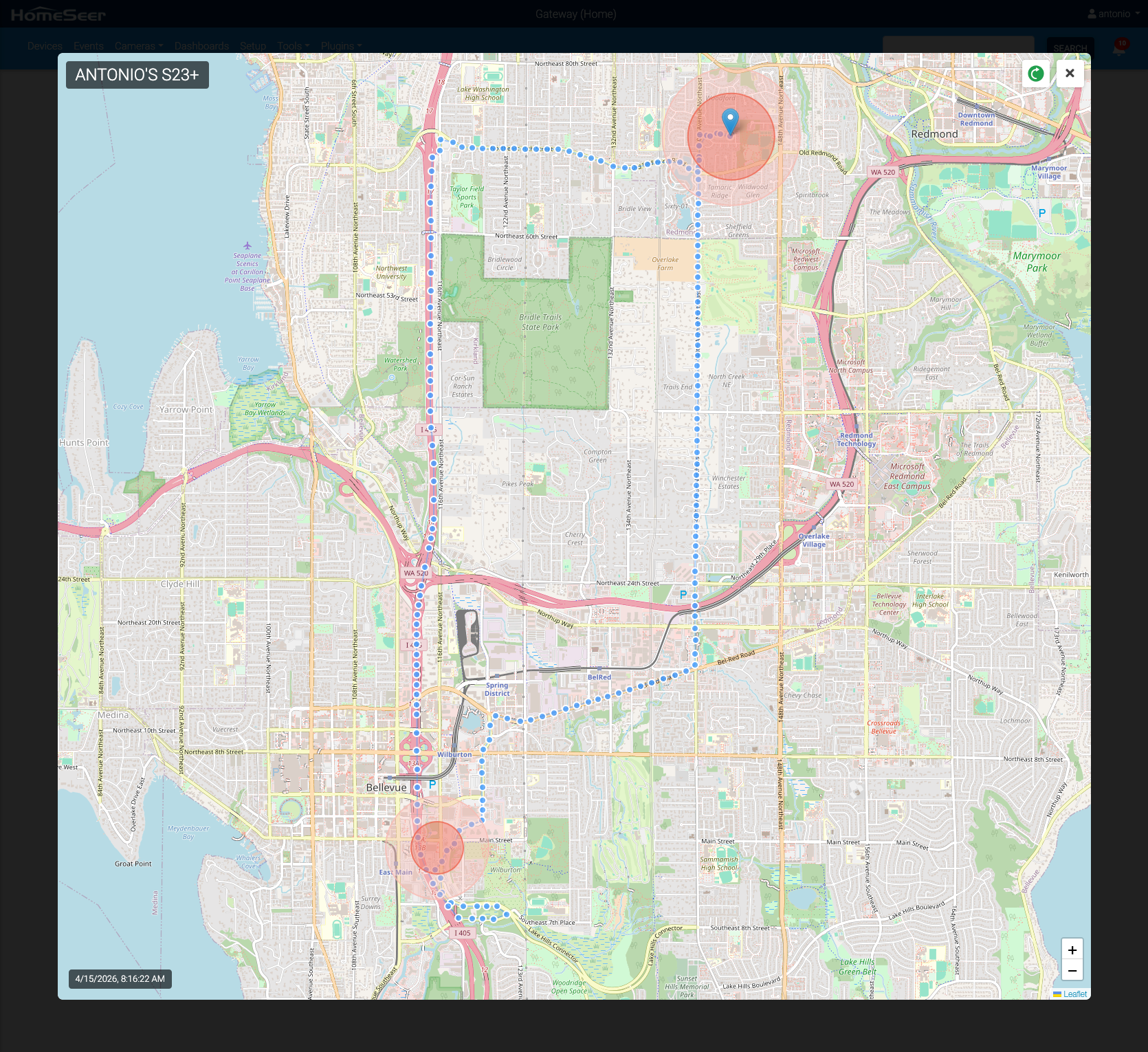
For geofence-only clients (those that only report fence transitions, not continuous location), the map shows orange flag markers at each visited fence location instead of a continuous trail.
Breadcrumbs also work in the mobile app through the Dashboard Map widget — open a map widget full-screen to see the same location history trail.
Virtual Locations
You can now create virtual location clients — clients that track location sources outside of the HSBuddy mobile app. Got a Tesla, a Tile tracker, or another HomeSeer plugin that stores GPS coordinates? Virtual clients let you bring those locations into HSBuddy's geofencing system.
There are two ways to feed location data into a virtual client:
- Follow another device: Point the virtual client at an existing HomeSeer device that stores latitude and longitude — either as a combined text value (like
47.62,-122.35) or as separate features. HSBuddy watches for value changes and updates the virtual client's position automatically. - Update via script: Use the existing
ReportLocationJSON API to push coordinates from any script, plugin, or external integration.


New Virtual Client Wizard
Once created, virtual clients are fully integrated — they appear on the Geofences page, trigger geofence enter/exit events, show up in Dashboard Map widgets, and support the new location history breadcrumbs. You can also create HomeSeer devices for them, just like mobile clients.
To create one, head to the Clients page and click New Virtual Client. A step-by-step wizard walks you through naming the client and configuring the location source. Already have one set up? Use the Configure option in the client's drop-down menu to change the source device.
Under the Hood: Longer History Retention
In the last update, the plug-in's device history storage was rewritten to use date-based partitioned files — one file per day, with a maximum retention of 9 days. This update takes that further with configurable partition granularity.
You can now set how many days each partition file covers, from 1 to 30. This extends the maximum retention period significantly:
| Days per partition | Max retention |
|---|---|
| 1 (default) | 9 days |
| 7 | 63 days (~2 months) |
| 14 | 126 days (~4 months) |
| 30 | 270 days (~9 months) |
The trade-off is straightforward: coarser partitions mean fewer files and longer retention, but less granular cleanup. The system keeps at most 10 partition files on disk, so storage stays bounded regardless of the setting. Systems with thousands of devices will also benefit from the reduced file count.
The new setting is on the History settings page, along with an updated size display showing the largest individual partition file. Note that changing the partition size will erase existing device history — notification history is not affected.
This also benefits the new location history feature: with longer retention, breadcrumb trails can show where a client has been over weeks or months.
Notable Bug Fixes
[Android] Custom notification sounds break after app updates
A long-standing Android issue where custom notification sounds (Doorbell, Alarm Clock, Chimes, etc.) would revert to the default system chime after updating the app has been fixed. The root cause was that Android notification channels were being created with resource IDs that could shift between builds. The fix uses stable, name-based sound references that survive app updates.
This requires both a plug-in update and a mobile app update — once both are in place, the fix takes effect automatically. Legacy notification channels from previous versions are cleaned up when the app detects the updated plug-in.
Updating
Ready to update? Here's how:
- Plug-in: Update to version 4.59 from the HomeSeer plug-in manager.
- Mobile app: Update to the latest version from the App Store or Google Play.
As of the time of this article, the updates are available in the Beta channels of the plugin and the app. Make sure to read the documentation on how to join the Beta program!
As always, if you run into any issues, you can file a report from the app under Options > Feedback, or post on the HomeSeer forum.